|
|
|
Golf League Secretary offers
Print Preview
which allows you to see how a league report or scorecard will appear on the
printed page. You can edit the report or change the page setup and
orientation or you can send the report to the printer. Select
Print Preview
from the File Menu or Format Toolbar and the active
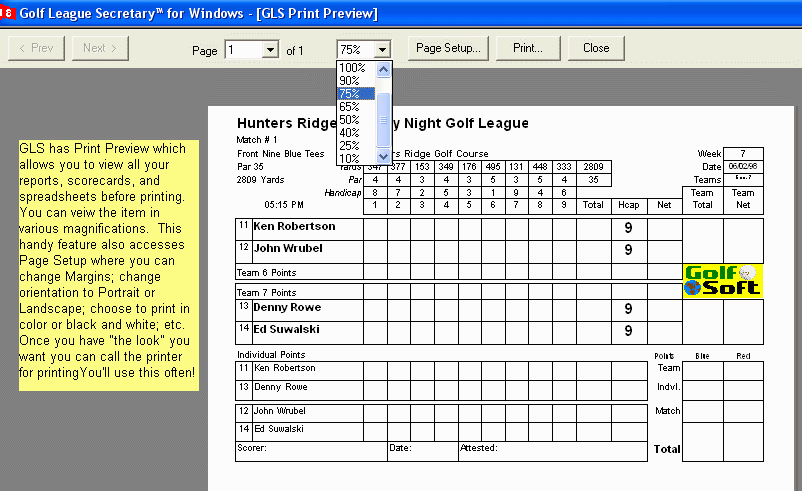
report will appear in "Print Preview Mode." (See Figure 1). If the report
has multiple pages you can click "Next" Page or "Previous" Page to see more
pages. Or you can select a page from the drop-down Page List. You
can determine the percentage size of the document. Click on "Page Setup"
to change Print Orientation, Margins, or other printer settings. Click
Close to exit print preview mode.
(Figure 1 - Print Preview Screen)
All spreadsheets, whether league report queries, read only
database tables, or a spreadsheet file that you have created, can be printed
using the Windows Printer Setup and GLS Printing Options. With one
or more spreadsheets open, select "Print..." from the File Menu. Select
Printer Setup to set the paper size, page orientation (Portrait or Landscape),
and other settings. Select the Worksheets, or Reports from the list box
which contains all the open worksheets. You can select multiple worksheets
for printing. GLS will send the selected worksheets to the printer. This is very
handy for doing multiple scorecards. Print Number of Pages: You can print
all pages, a selected cell range or just one page...
If you select "Smart Printing" the following
rules apply…
(Figure 2 - GLS Printer Screen)
Other Options:
Print with or without
Grid Lines, Column Headers, or Row Headers. Experiment...
(Figure 3 - GLS Printer Options)
Also See:
League Points
Points Setup
Scorecard Setup
Divisions or Flights
Schedule Setup
Player Report
|


|
Back to Top
|
For questions or comments, send email to |

